
Minimum Version Required: 22.01
Pre-Conditions
- Generate Pre-sell/Delivery Plans using Plan Optimizer
- Set System Setting 521 = True, only if you would like pre-sell events to move alongside the delivery events they are tied to
- Move Plans to appropriate dates, making sure to align pre-sell and delivery dates
- Move Events (Optional)
- Set Routing Methods to make sure your delivery events do NOT change back to non-Holiday Routing. Set Setting 521 = False
Steps
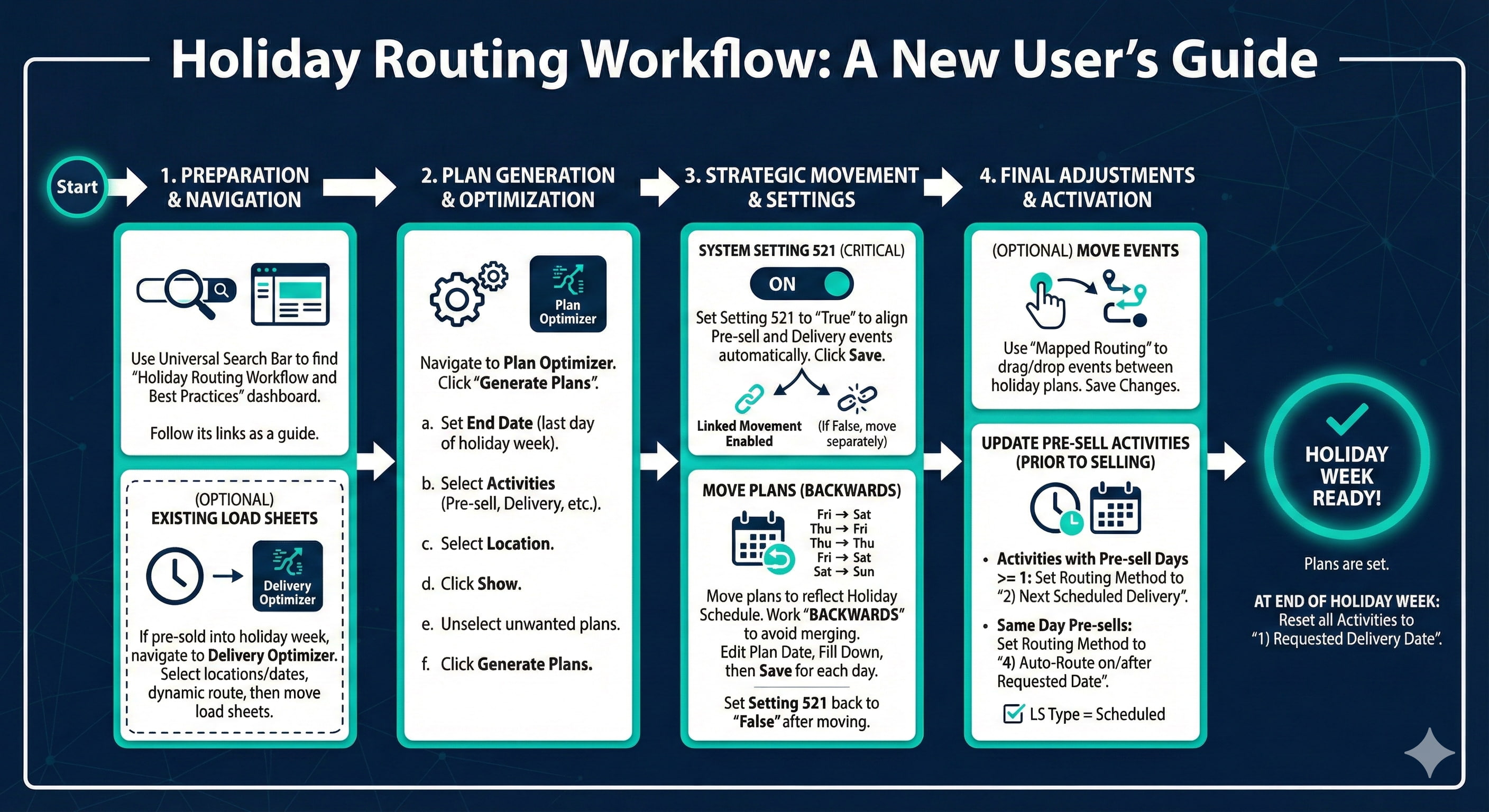
Navigating through Holiday Routing Workflow and Best Practices Steps
Using the Universal Search Bar, navigate to the ‘Holiday Routing Workflow and Best Practices’ dashboard. Use this dashboard as an additional step by step guide, with links included, to perform your Holiday Routing setup.
-
(Optional) Only do this step if you have already pre-sold into the holiday week and have existing delivery load sheets in the holiday week. Using the Universal Search Bar, navigate to the ‘Delivery Optimizer’ dashboard or navigate to Plan Optimizer through the ‘Delivery Home’ dashboard.
a. Select location(s) and dates in the holiday week
b. Check the box for all routes and click the Dynamic Routing Button
c. Move delivery load sheets to the desired Holiday Routing schedule delivery day
d. By omitting this step, you may see duplicate load sheets if pre-sold events have already been completed prior to the holiday week
- Using the Universal Search Bar, navigate to the ‘Plan Optimizer’ dashboard or navigate to Plan Optimizer through the ‘Delivery Home’ dashboard.
-
Click ‘Generate Plans’.
a. Set ‘End Date’ to the last day in the holiday week.
b. Select all ‘Activities’ that you plan on updating including pre-sell, driver-sell, and delivery.
c. Select ‘Location’ if applicable.
d. Select ‘Show’.
e. Unselect any plans you DON'T want to generate Plans for (examples: Hot Shots, Special Events, etc.) Then click the ‘Generate Plans’ button.
-
Once Plans for the holiday week have been generated, navigate to System Settings and search for system setting 521.
a. Set System Setting 521 to ‘True’ to shift Pre-generated Events when a related event has changed the date and click ‘Save Changes'.
NOTE: Setting this to True while you set up for Holiday Week will ensure that your Presell Events are moved when you move Delivery Events (or vice versa) to keep the Days in advance on the Activity the same.
b. If you leave this setting as ‘False’ you will need to move pre-sell and delivery events separately.
-
Move pre-generated Plans to reflect Holiday Routing Schedule.
NOTE: Moving plans for a user to a day where the same user already has a plan will merge the user’s plans. Work “backwards” when moving plans to avoid this overlap.
Example: If the normal work week is Monday-Friday and the holiday week is Tuesday-Saturday (taking Monday off and adding Saturday), all pre-sell and delivery days would be shifting one day. To do this start by moving the regularly scheduled Friday plans to Saturday, then the regularly scheduled Thursday plans to Friday, etc. This can be done in the opposite manner for a different scenario
a. Select the ‘Location’ and ‘Plan Date’ in Plan Optimizer to view the plans for a day that you want to start moving. You can also filter by ‘Activity’ if you only want to move pre-sell plans or delivery plans at a time.
b. Select ‘Edit Plan Date’.
c. Update the date on the first Plan by selecting the calendar icon and selecting the date you want to move the plan to.
d. Click on ‘Plan Date’ directly above the first date and select ‘Fill Down’. Select ‘Save Plan Date’.
NOTE: Repeat for each day of plans you are moving and for each activity, if done separately.
e. Change System Setting 521 back to False if set to True in Step 3.
-
(Optional) Move Events between Plans (similar to moving stops between routes, but only for the holiday week pre-generated plans).
a. If you would like to move events between the Plans generated for the holiday week, select the plans you want to move events between.
b. Select the ‘Mapped Routing’ button.
c. Drag and drop Events between Routes or update users/vehicles if necessary to the plans.
d. Select ‘Save Changes’ to update the plans.
-
Update Pre-sell Activities prior to User’s selling for the Holiday Week.
Example: If salesreps begin selling on the Thursday prior to the Holiday Week, update the activities by Wednesday evening.
a. Activities with Pre-sell Days in Advance of 1 or more should be updated to use Routing Method 2) Next Scheduled Delivery. Use the link in the Holiday Routing Worflow and Best Practices Dashboard to access these activities.
b. Same Day Pre-sells will need to be updated to Routing Method 4) Auto-Route on or After Requested Date. Use the link in the Holiday Routing Worflow and Best Practices Dashboard to access these activities.
c. Check that the LS Type = Scheduled on the Delivery Route Types so that the events are found.
- Plans are now ready for the Holiday Week.
- At the End of the Holiday Week, Update all Activities back to Routing Method 1) Requested Delivery Date.
Comments
0 comments
Please sign in to leave a comment.